

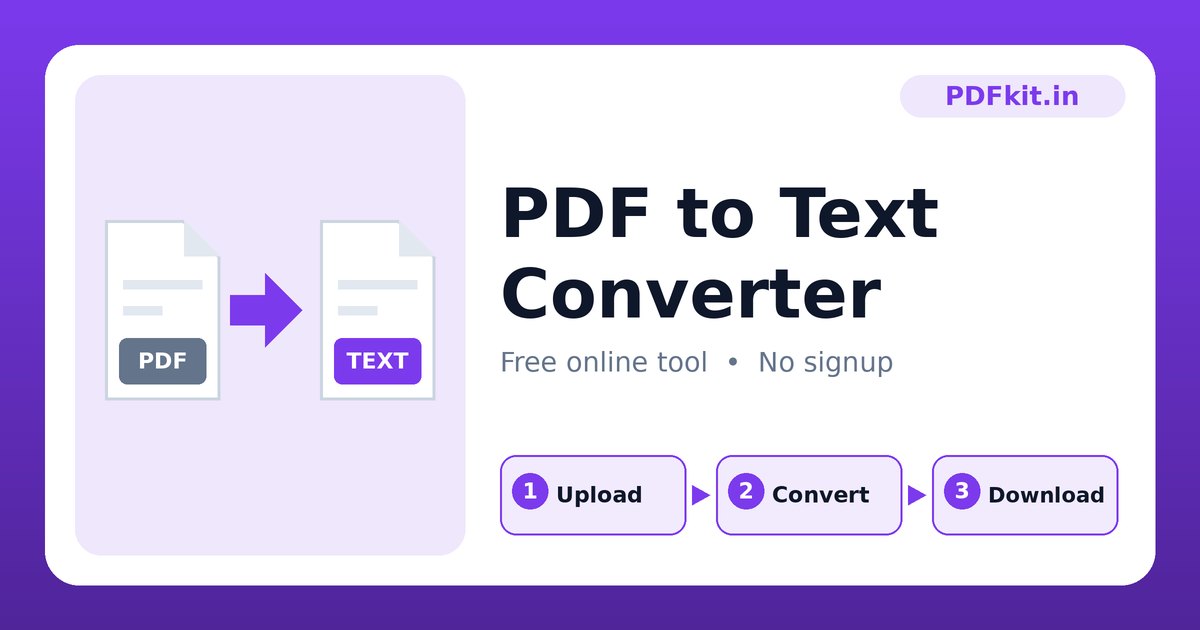
When you need the written content of a PDF in a simple text format, a PDF to Text converter can save time. PDFkit lists a PDF to Text service for supported documents. This guide explains the workflow and what to review in the extracted text.
Open the exact service: PDF to Text Converter.
Steps to convert PDF to text
- Open the PDFkit PDF to Text tool.
- Select the PDF file from your device.
- Start the conversion using the action button displayed on the tool page.
- Wait for processing to finish.
- Download or copy the text output using the options provided.
- Review the text for missing words, unusual line breaks, page order and reading sequence.
Text-based PDFs and scanned PDFs
A text-based PDF contains selectable text, which can usually be extracted directly. A scanned PDF may contain only page images. If the text cannot be selected in your PDF, an OCR tool may be more appropriate. PDFkit also lists Extract Text from PDF with OCR.
Frequently asked questions
Will the text keep the original PDF formatting?
Plain text does not preserve the full page design, fonts or exact layout. Check the output and reformat it if needed.
Can I extract text from a scan?
Image-only scans generally require OCR. Use the OCR service and proofread the recognised text.
Try it: Convert PDF to text with PDFkit.










