

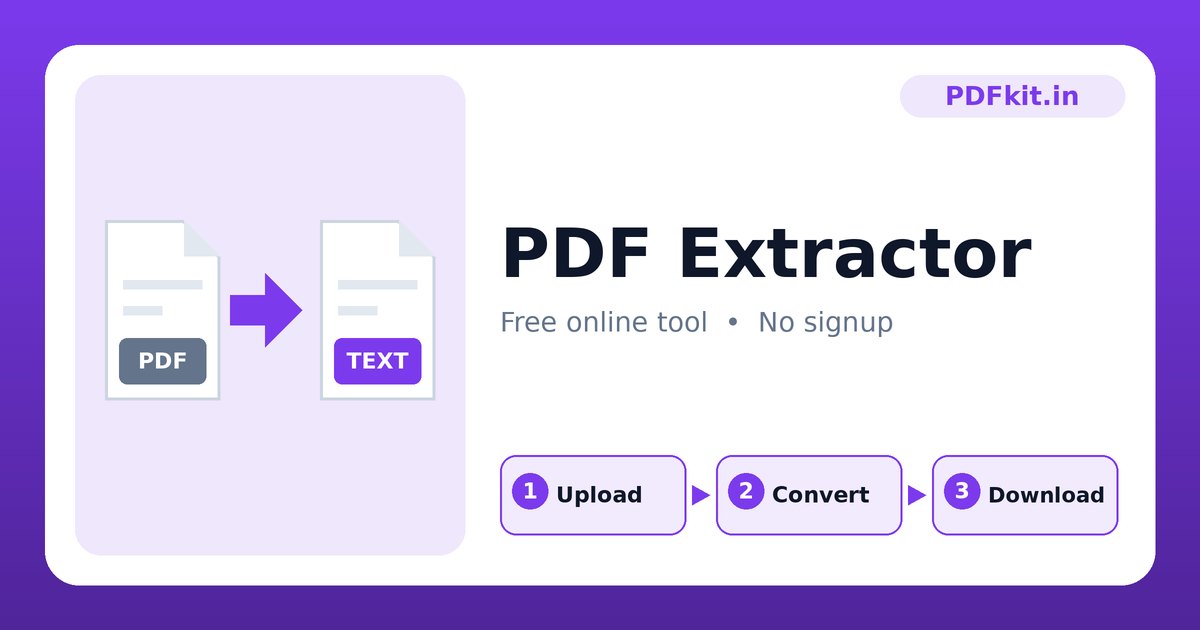
Sometimes you need information from a PDF without manually copying every line. PDFkit’s PDF Extractor offers options to extract a full document, tables only, or a selected area, with export options for Word and Excel. This guide explains how to choose the appropriate extraction mode.
Open the tool: PDF Extractor on PDFkit.
What can PDF Extractor do?
- Full document: extract the document’s available text content.
- Tables only: focus on table content when you need structured information.
- Selected area: work with a chosen portion of the PDF, where supported by the tool interface.
The available export formats include Word and Excel. Choose the format that best suits how you plan to use the extracted information.
Steps to extract information from a PDF
- Open the PDFkit PDF Extractor.
- Select your PDF file using the file control on the page.
- Choose the extraction mode: Full document, Tables only or Selected area.
- Choose Word or Excel as the export format, according to the options displayed.
- Start extraction and wait for processing to finish.
- Download the output and review the extracted content for missing text, table alignment or reading-order issues.
Which extraction mode should you choose?
Choose Full document when you need the document’s general text. Choose Tables only when your main goal is to reuse tabular information. Choose Selected area when you only need a particular portion and the tool provides an area-selection control.
Important note about scanned PDFs
The extractor works best with text-based PDFs. A scanned or image-only PDF may contain page pictures rather than selectable text. OCR is not enabled in the free version of this extractor, so text in image-only scans may not be extracted as expected. If the PDF is a scan, check the result carefully rather than assuming every word has been recognised.
Review the exported file
After downloading, open the Word or Excel file and check spelling, rows, columns, headings and reading order. This is especially important for complex tables or PDFs with multiple columns.
Frequently asked questions
Can I export extracted information to Excel?
Yes. Excel is one of the export choices offered by this PDF Extractor.
Can I extract only tables?
Choose the Tables only mode.
Does it extract text from every scanned PDF?
No. It works best with text-based PDFs; OCR is not enabled in the free version.
Try it: Extract PDF content with PDFkit.










